 Mesalo
Table service without internet: a 15-minute setup
Paper slips get lost, waiters run back and forth, and the order app needs a signal the beach doesn't have. This guide shows how to set up digital table ordering that works where the internet doesn't: phones that talk to each other directly.
What you need
- An Android phone for each waiter, and one for kitchen and bar (an old tablet is ideal there).
- Either a Wi-Fi router (internet not needed) or one phone that opens a hotspot.
- Your menu – on paper is fine, a spreadsheet is faster.
1. Create the venue
Install Mesalo on the phone that will be the admin – usually the owner's or the shift lead's. Choose Set up a venue, enter the name and the currency. This phone can later add devices and change the menu.
2. Add the menu
Add sections like Starters, Mains, Drinks and their dishes with prices. Faster: import a spreadsheet with the columns category, name, price, station. The station decides where an item goes: food to the kitchen, drinks to the bar.
3. Draw the floor plan
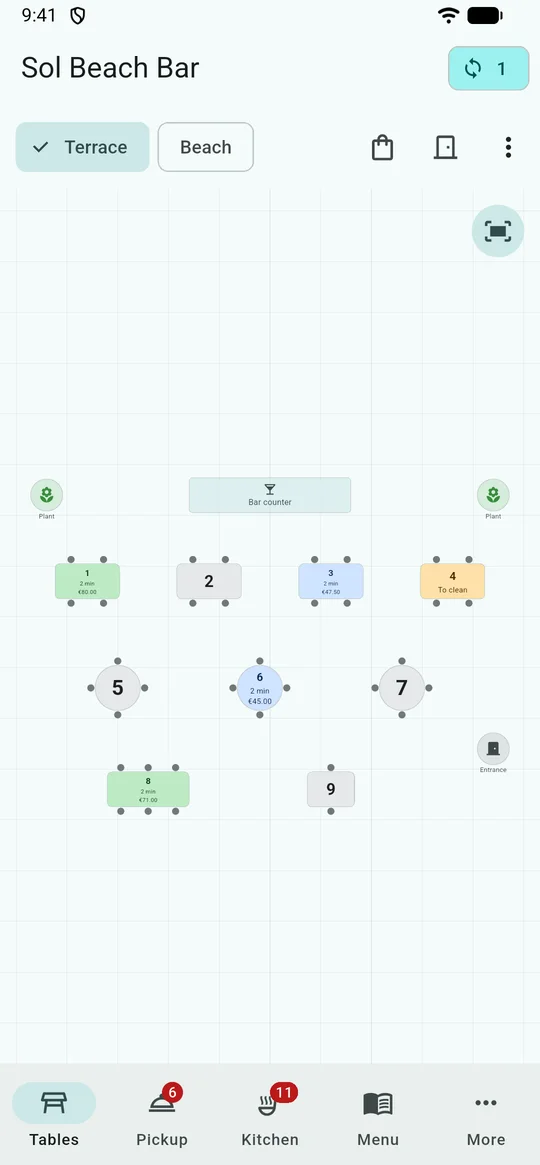
Add your tables and move them where they really are. Landmarks like the bar, the entrance or umbrellas help new staff find table 7 on the first evening. Several rooms (terrace, beach, inside) are possible.
4. Choose the network
Wi-Fi: if there is a router, connect all phones to it. It doesn't need internet – a router without cable is enough. Guest Wi-Fi often blocks phones from seeing each other; use a staff network or the direct QR connection.
Hotspot: no router? One phone opens a hotspot from within Mesalo, no SIM needed. The invitation QR code then contains the hotspot access, so the others join with one scan.
5. Invite the team
On the admin phone: More → Add device, pick the role, and let the new phone scan the QR code. Can't be there in person? Invite by message sends an encrypted invitation; the 6-digit code to open it is shown only on your screen. Invitations work for 24 hours.
Then run the readiness check on every phone: it tells you if a battery setting could stop Mesalo in someone's pocket, and fixes it with one tap.
6. Run the service
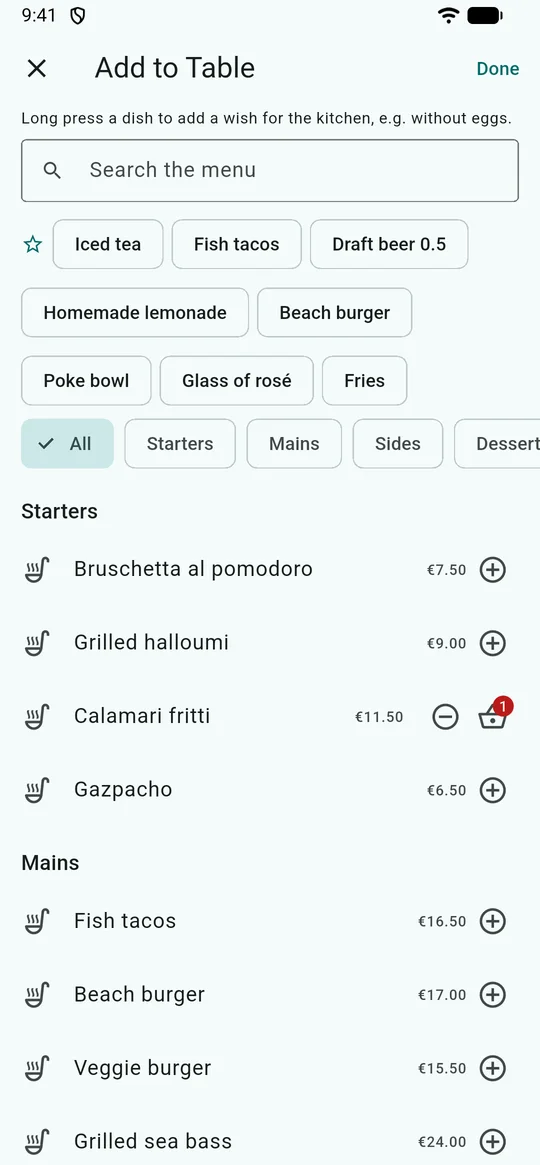
A waiter taps the table, taps the seat if it matters, and picks dishes. Send puts drinks on the bar's screen and food on the kitchen's – instantly.
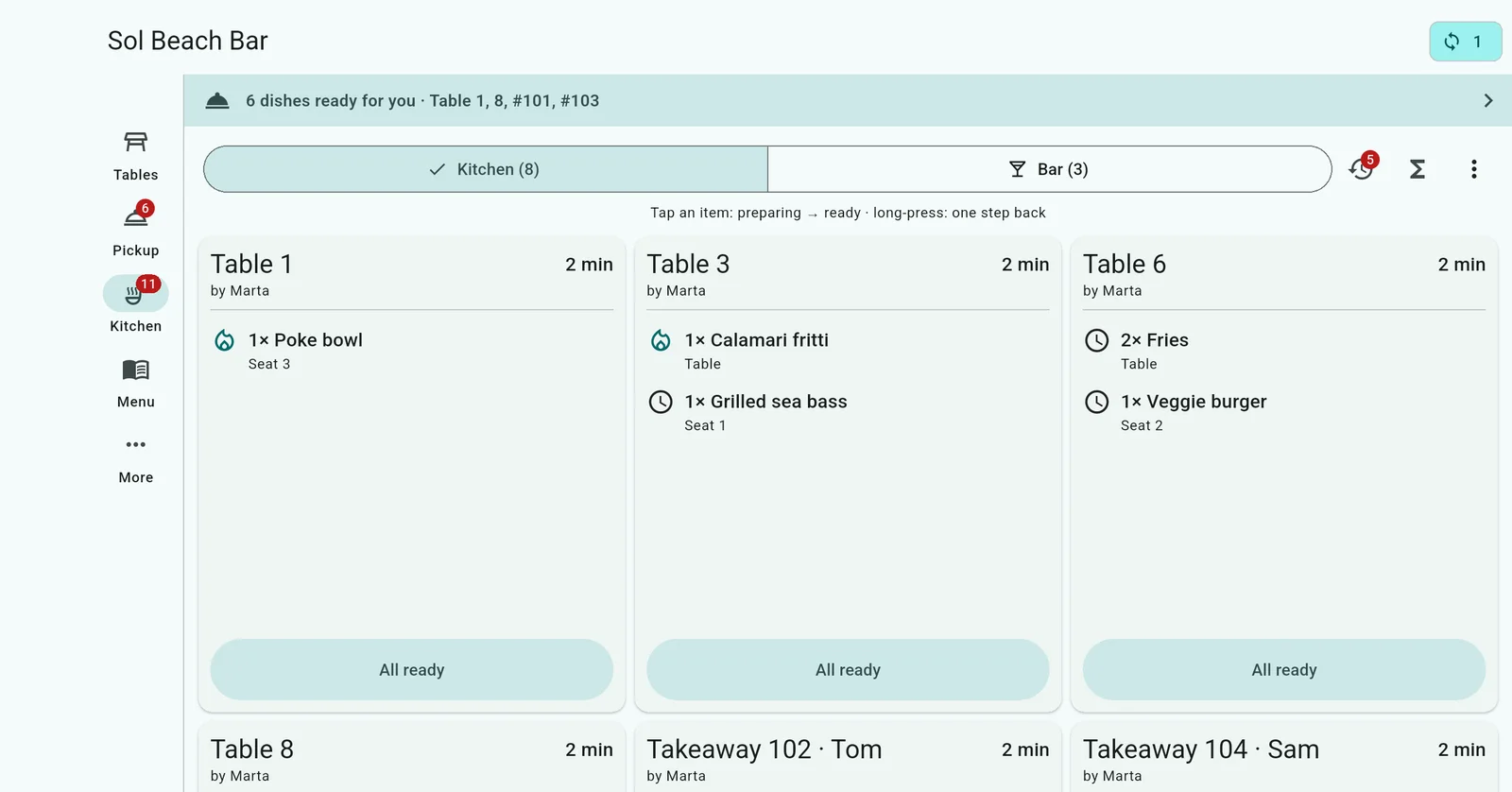
The kitchen sees each table's ticket with waiting time, taps an item when it starts and again when it's ready.
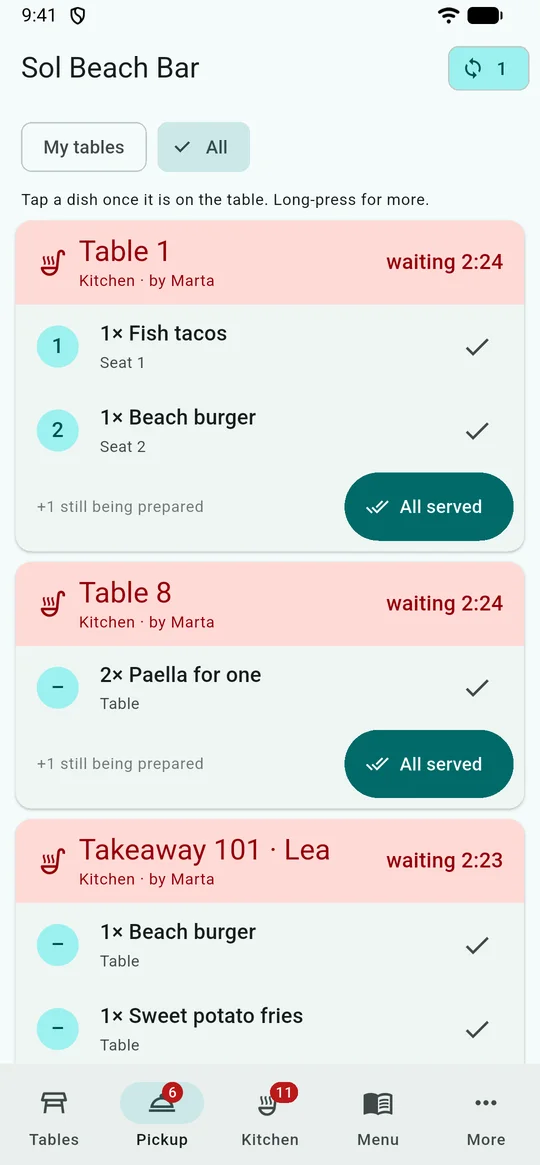
Ready dishes appear in the pickup list of every waiter. Whoever is free serves, and taps the dish once it's on the table.
7. Keep an eye on the sync
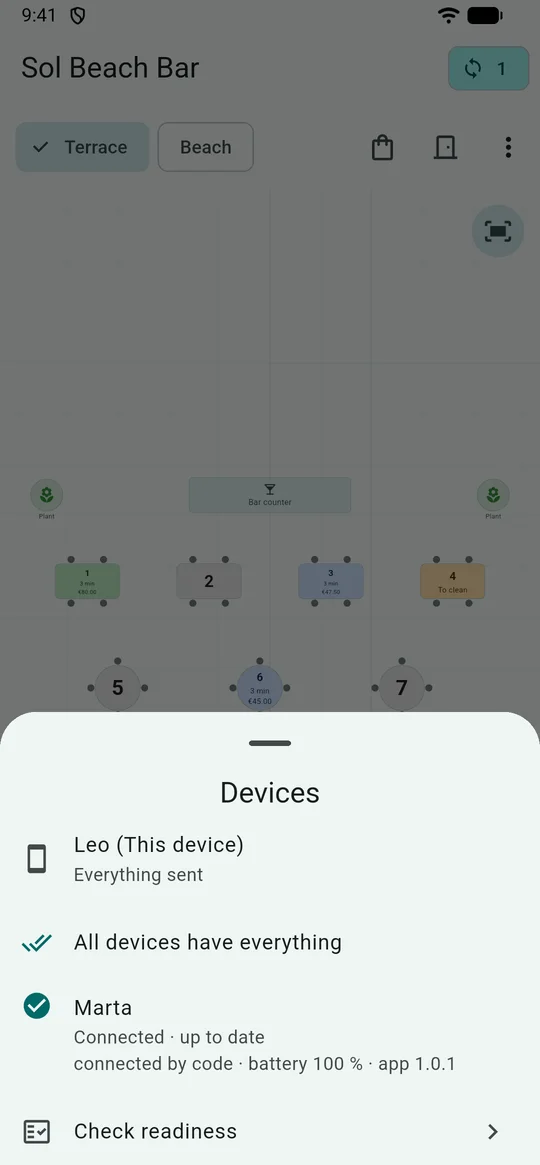
The chip at the top shows how many devices are connected and if anything is still on its way. Tap it to see each device: up to date or not, how it's connected, battery and app version.
8. Settle and close the day
The bill overview shows each table's total and splits it evenly. Guests pay at your till or card terminal; then mark the table as settled, and it turns orange: to clean. At the end of the day, the day report shows how many dishes went out and how long the kitchen took.
More questions? See the FAQ.